How to Use Unison for VBS Volunteer Management: From Signup to Thank-You
Learn how to schedule VBS volunteers with Unison. Create volunteer signups, assign roles, send reminders, find substitutes, and track volunteer hours.


A step-by-step walkthrough of how churches use Unison to organize VBS volunteers, schedules, reminders, and follow-up—all in one place.
Vacation Bible School is one of the most volunteer-intensive weeks of the year. If you're evaluating volunteer sign-up tools for your church and wondering whether Unison can handle VBS, this guide walks through exactly how churches use it—from creating schedules and collecting volunteer information to sending reminders and tracking hours after the event.
Whether you're coordinating setup crews, group leaders, station helpers, photographers, or snack teams, Unison helps keep everyone organized without relying on spreadsheets, email chains, or multiple disconnected tools.
If you're looking for a simpler, ad-free SignUpGenius alternative for churches, here's how to use Unison for VBS volunteer management in practice.
Step 1: Set Up Your Sunday-to-Saturday Schedule
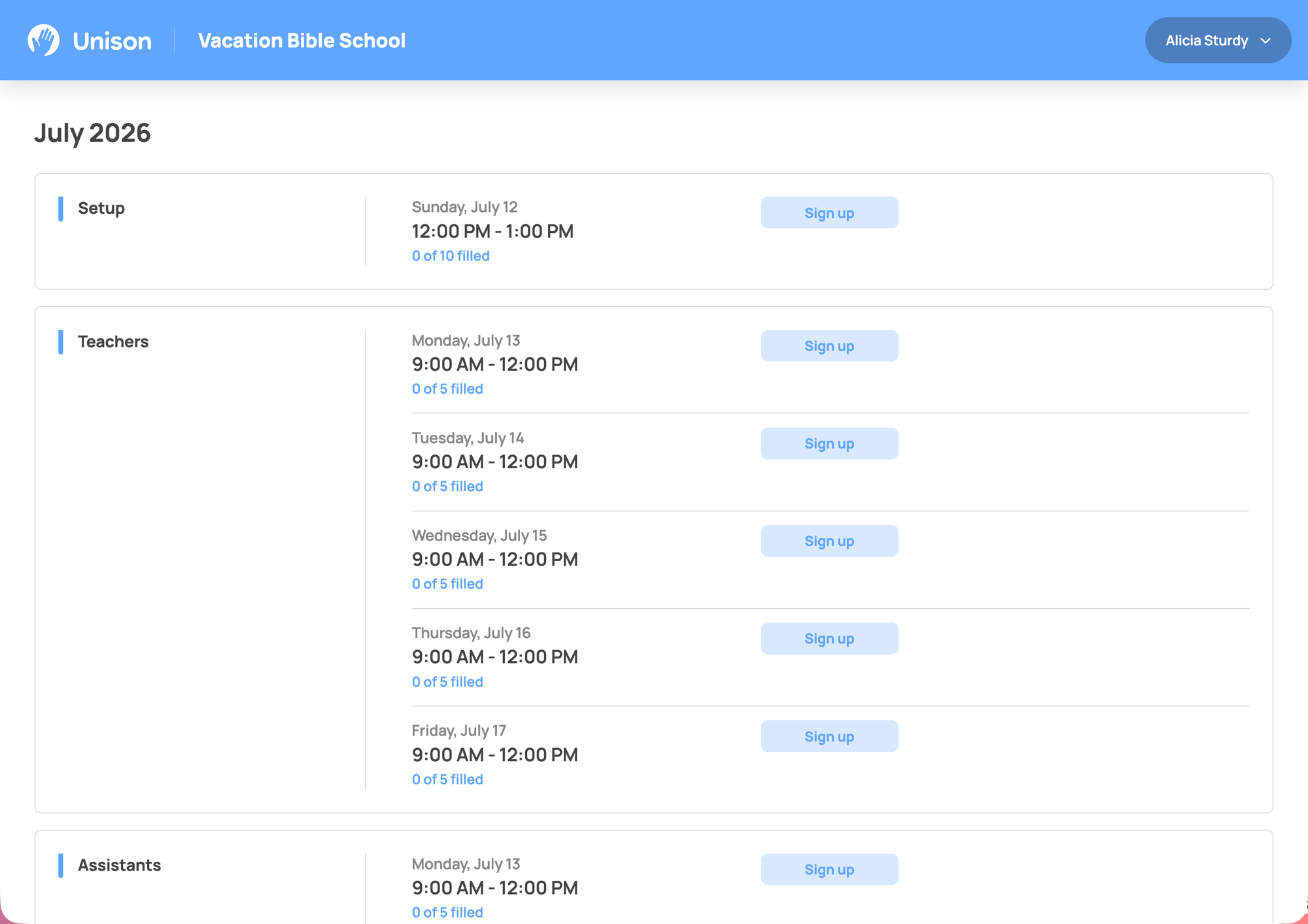
The first thing to build in Unison is your VBS schedule—and the key is to include the full week, not just the program days.
A structure that works well:
- Sunday — Setup only
- Monday through Friday — Full daily program with all volunteer roles
- Saturday — Cleanup and teardown
Building Sunday and Saturday as dedicated schedule days means your setup and teardown volunteers are included alongside everyone else. They get their own assignments, reminders, and service-hour tracking.
For Monday through Friday, create a recurring daily schedule. Because all five days share the same basic role structure, you can build it once and replicate it across the week.
Because schedules live in one place, volunteers can view assignments from any device, while coordinators can make updates without sending revised spreadsheets or managing multiple versions of a schedule.
Tip: Set up your schedule before recruitment begins. Volunteers are more likely to sign up when they can see specific dates, times, and responsibilities.
Step 2: Create Your Volunteer Roles
Once your schedule is in place, create the volunteer roles you'll need throughout the week.
For a typical VBS serving around 100 children, that might include:
Roles that benefit from consistency all week
- Group leaders and assistants — Two per group where possible. Create assignments by day so volunteers with partial availability can still participate.
- Station leaders — Games, crafts, science, storytelling, or Bible stations often benefit from having the same leader throughout the week.
- Registration and check-in — Familiar faces help create a smoother experience for families.
- Pickup coordinator — An important child-safety role that should never be left unfilled.
- Music lead — Can be assigned to one person all week or shared among multiple volunteers.
Roles that work well as daily assignments
- Station helpers — Great for volunteers who can only serve one or two days.
- Photographer — A low-commitment role that works well for partial-week volunteers.
- Snack coordinator — Can rotate throughout the week based on availability.
Creating assignments by day instead of by week gives volunteers flexibility. If someone can only help on Tuesday and Thursday, their service is still valuable—and they can sign up only for the days they're available.
If plans change, Unison's drag-and-drop scheduling makes it easy to move volunteers between assignments without rebuilding the entire schedule.
Step 3: Build Your Signup with Custom Fields
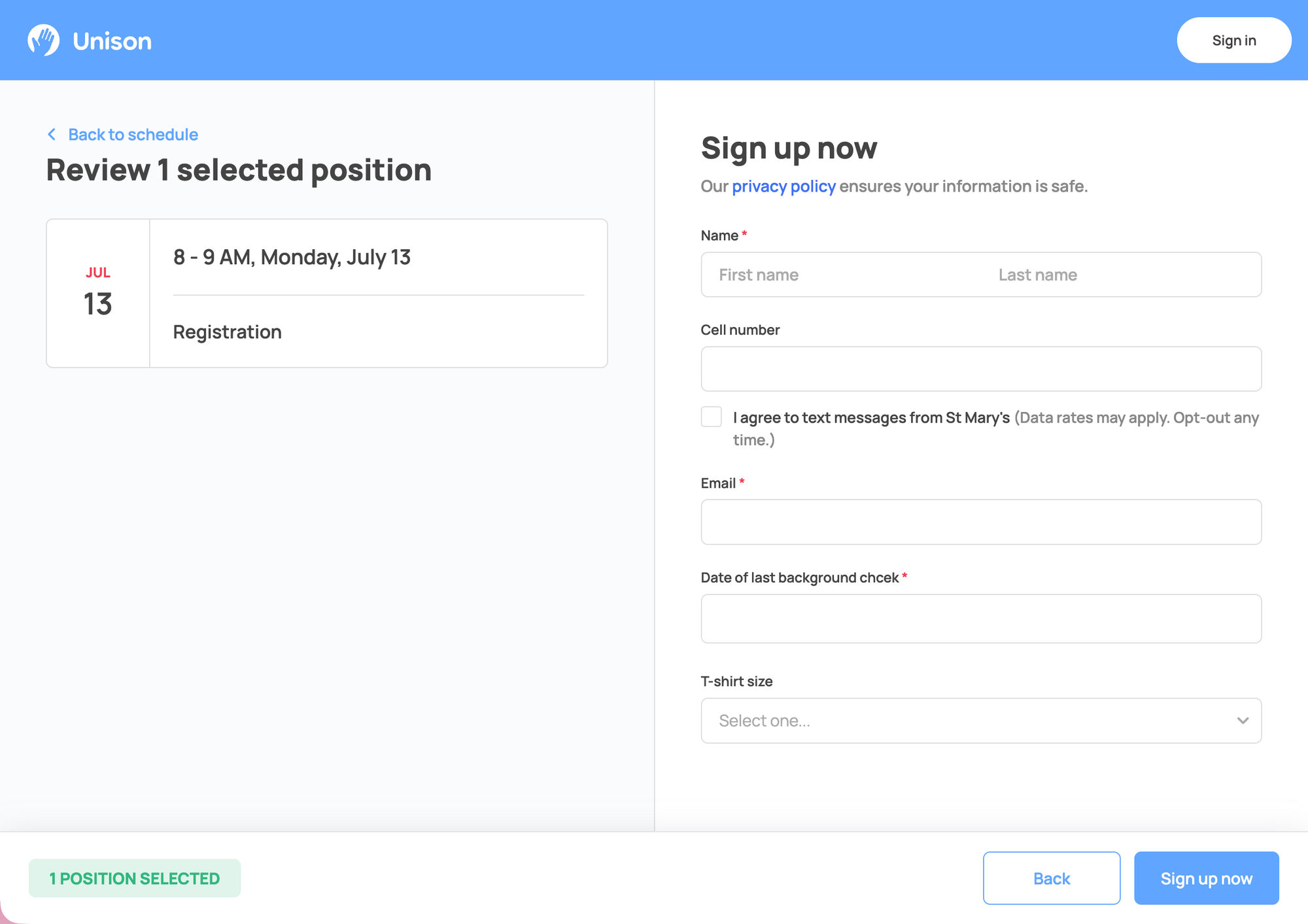
Before opening signups, add the information you'll need to collect from volunteers.
Unison's custom fields and signup questions help keep everything organized in one place instead of scattered across emails and spreadsheets.
Useful fields for VBS include:
- Background check status — Track completion directly on volunteer profiles. For child-facing roles, Unison's restricted roles feature can prevent unapproved volunteers from being assigned.
- T-shirt size — Collect sizes during signup instead of sending a separate follow-up survey.
- Experience working with children — Helpful when assigning volunteers to different roles.
- Availability by day — Especially useful when building schedules that span an entire week.
Unlike many volunteer sign-up tools, Unison doesn't require volunteers to create an account before signing up. They simply enter their name and email, receive a confirmation, and can add assignments directly to their calendar.
Your VBS signup page can also be customized to match your church's branding with one of Unison's built-in themes, helping the experience feel connected to your ministry rather than a generic third-party form.
Every signup automatically generates a QR code that can be added to bulletins, flyers, email newsletters, or Sunday slides, making it easy to recruit volunteers wherever your congregation gathers.
If your church is managing multiple VBS-related signups—such as volunteer registration, setup crews, parent orientation sessions, or donation drives—consider using a Directory Page. Instead of sharing multiple links, volunteers can find everything in one central location.
Tip: Consider opening signups early, even if every role isn't finalized yet. Early interest helps you gauge volunteer demand and identify areas where additional recruiting may be needed.
Step 4: Send Reminders Throughout VBS Week
This tip comes straight from some of the most experienced VBS coordinators: send reminders every day of VBS week.
Even longtime volunteers appreciate having all the details they need in one place.
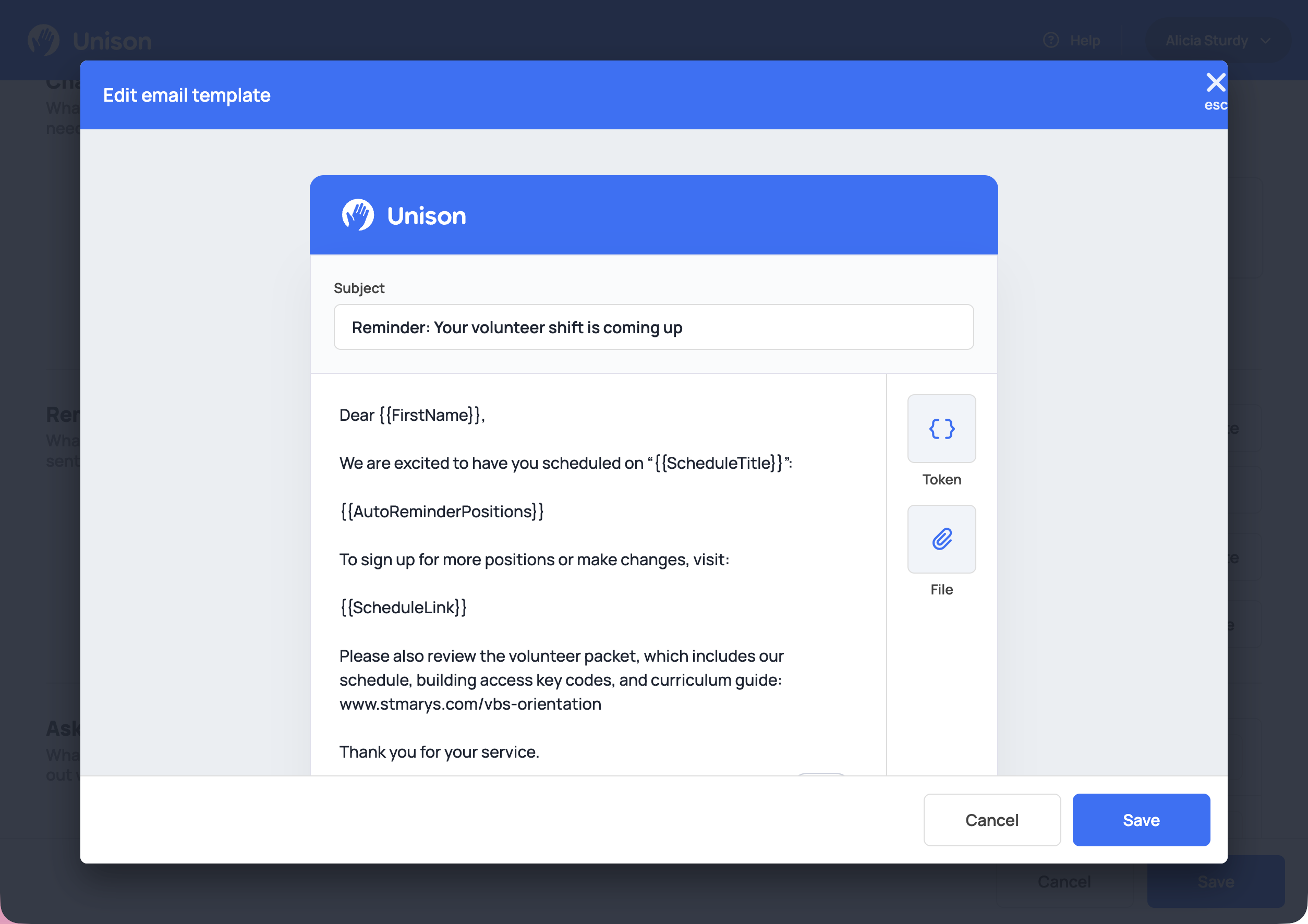
With Unison, you can send announcements by email or text message to your volunteer team. Announcements support personalized name and schedule tokens, allowing each volunteer to receive information relevant to their assignment.
A typical daily reminder might include:
- Arrival time and check-in location
- Building access information or door codes
- Links to curriculum guides or resource folders
- Special instructions for the day
- A copy of the day's schedule
Many coordinators also send a comprehensive welcome message before the week begins with links to volunteer resources, curriculum materials, and key contact information. Daily reminders can then reference those same resources throughout the week.
One feature worth enabling before VBS starts is automatic sub requests. If a volunteer becomes unavailable, Unison can help identify a replacement without requiring coordinators to spend their morning making phone calls.
Tip: Save reminder templates before VBS week begins. You'll appreciate having them ready when things get busy.
Step 5: Track Volunteer Hours and Send Personal Thank-Yous
When VBS ends, run a volunteer hours report before sending thank-you messages.
This gives you a record of each volunteer's contribution and helps make your follow-up more personal.
Instead of:
"Thanks for helping with VBS."
You can say:
"Thank you for giving 12 hours to support our children and families during VBS this week."
That level of specificity helps volunteers feel seen, appreciated, and more likely to serve again next year.
Hours reporting also gives you valuable planning data:
- Which roles were easiest to fill
- Which roles needed additional recruiting
- Which volunteers served most frequently
- Where staffing gaps appeared throughout the week
Those insights can make next year's planning significantly easier.
Ready to Build Your VBS Volunteer Schedule?
From setup day to final cleanup, Unison helps you keep your entire VBS volunteer schedule in one place. Create volunteer signups, assign roles, send reminders, fill last-minute openings, and track volunteer hours without juggling spreadsheets or multiple tools.
Ready to get started? Create your free VBS volunteer signup.
